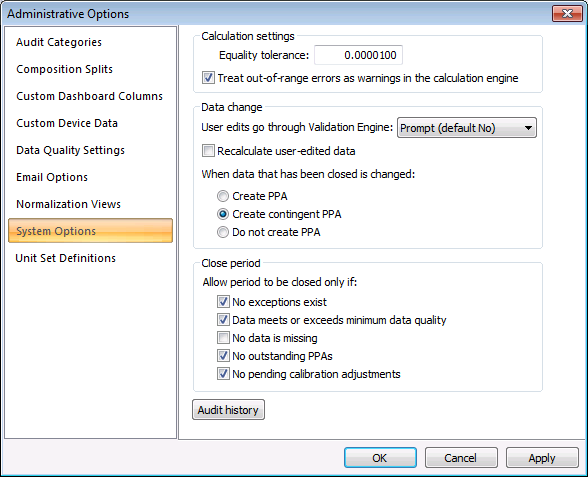
Use the System Options page to configure settings that determine calculation settings, how data changes are handled, and the circumstances under which you can close periods. You can also access audit history information from this page.
You must have proper security authorization to configure parameters for system options. See FMS Security (and ACCESS security event) for information about configuring security access to administrative options.
On the Admin menu, click Options, then System Options to access these settings.
The properties for the System Options page of the Administrative Options dialog box are described below.
Type an Equality tolerance value into the text box. An equality tolerance value is used when running validation rules, to determine whether two data values are equal. The tolerance value must be greater than or equal to 0 and less than or equal to 1. Values greater than 1 and values containing invalid characters are not accepted. The default value is 0.0000100.
Click the Treat out-of-range errors as warnings in the calculation engine check box to treat an out-of-range error as a "warning" in the calculation engine. The calculation will still proceed, but an out-of-range warning will appear.

Note: This functionality is only available in systems licensed for FULL mode.
Validation rules, when configured to do so, are normally applied only at the time of data entry into the system. However it is possible to indicate in this section if you want user edits to be revalidated, and/or to have an informational user prompt provided when changes are made. If a validation rule is changed in the past, data will not be revalidated.
Calculations performed in CygNet Measurement use the field values that enter the system to generate the volume and energy values essential for managing measurement data. Recalculations may occur when the data used to produce the values is superseded by better, more complete or more precise data. While some recalculations occur automatically in the system, data changes affecting previous user-edited values can optionally be recalculated or not, as configured here.
Prior Period Adjustments (PPAs) can be generated according to options selected here. The purpose of a PPA is to notify downstream users, such as production accounting, that data values have changed. By default, once a data record has been closed, any subsequent changes will be considered PPAs. Other options for handling changes to closed data include the creation of a contingent PPA (one that requires approval before it can be processed), or to not create a PPA when a closed data record is changed. For example, if data changes have originated within production accounting, a PPA may not be required.
|
Parameter |
Description |
|---|---|
| [When data is edited by users] | |
|
User edits go through Validation Engine |
Select the validation engine behavior - whether or not to run all user edits through the validation engine - from the drop-down menu. Options are as follows.
Notes: When this feature is set to No, the resultant behavior is that editing and saving any value (single or multiple) in a record containing exceptions will clear ALL exceptions associated with that record. When this feature is set to Prompt, editing will be affected as follows.
See Managing Validation Engines for more information about the validation Engine. |
|
Select the recalculation behavior to apply to previously user-edited data (having a resultant data source of User Override). Selection of this option means recalculation will be triggered automatically in cases where subsequent changes to configuration or gas analysis data may impact the previously overridden historical values. Types of data changes possibly affecting the historical values include both configuration data imports or edits and gas analysis sample imports or edits. Click the Recalculate user-edited data check box to select/clear the option to recalculate historical values that have already been overridden via user edit.
Recalculation can also be performed manually, using the Recalculate option in the History Grid context menu. See Using the History Grid Control for more information about that option. |
|
| When data that has been closed is changed | |
|
Create PPA |
Select this option to create an approved PPA when closed data is changed. See the Prior Period Adjustment Control for more information about prior period adjustments. |
|
Create contingent PPA |
Select this option to create a contingent PPA when closed data is changed. A contingent PPA requires approval. |
|
Do not create PPA |
Select this option to not create a PPA when closed data is changed. |
Note: This functionality is only available in systems licensed for FULL mode.
Select one of the following options to define the conditions that must be met to allow a period to be closed.
Note: Options are valid for all eligible Nodes - Group (Station), Liquid Device (with support for periodic history), and Gas Device (Gas Meter or Station Meter) - except as indicated otherwise:
|
Parameter |
Description |
|---|---|
| Allow period to be closed only if | |
|
No exceptions exist |
Valid only for eligible Nodes:
Click to indicate that a period may be closed only if no exceptions exist for a Node. Note: When a meter run contains multiple devices, all devices in the run will be checked for exceptions, even if only one device is rolled up to the station level. |
|
Click to indicate that a period may be closed only if data meets or exceeds the minimum data quality. If selected, minimum data quality is determined by the system setting for Minimum quality required to close a period. See System options on the Data Quality Settings page for more information. |
|
|
No data is missing |
Click to indicate that a period may be closed only if no data is missing from the period. |
|
No outstanding PPAs |
Click to indicate that a period may be closed only if there are no outstanding PPAs. |
|
No pending calibration adjustments |
Valid only for eligible gas Nodes:
When also using the CygNet Dispatch application, click to indicate that a period may be closed only if there are no outstanding history adjustments due to calibration changes. |
See the Close Period Control for more information about closing periods.
Click the Audit history button to view the Audit History for your system settings. See Viewing Audit History for more information.
See Historizing System Configuration for more information about how system configuration is historized in CygNet Measurement.
|
|
|

